Switching immigration software without losing files
How a solo or small RCIC practice can move to new case management software without losing a file, missing a deadline or confusing clients mid-application.
The tool you picked years ago no longer fits. Maybe the price went up, or the practice changed, or you spend more time fighting it than using it. The hard part of switching immigration software is the switch itself: a lost document, a missed deadline, a client confused mid-application. This guide is for the RCIC who wants to switch without any of those.
The plan has six steps. None needs a consultant. The whole point is to never be in a state where a file exists in neither system. If you have not picked the new tool yet, start with how to choose immigration case management software and our RCIC practice software checklist. Leaving a named product? See the Officio alternative and CaseEasy alternative pages. Unsure whether the gap is a CRM or a case tool? Read immigration CRM vs case management software.
Step 1: Write down what you have
Before you look at exports, list what lives in the old system today. For each item, note where it lives now and whether it must move.
- Client contact details
- Signed consultation and service agreements
- Client documents, original uploads
- Final submitted packages
- Notes and messages
- Deadlines and reminders
- Invoices and payment records
The Code expects you to be able to produce much of this. Section 22(3)(b) requires you to give a client, on request, a copy of documents submitted or received. Sections 23(3) and 24(4) require you to keep signed copies of the consultation and service agreements. Whatever you move, those must stay findable.
Step 2: Get a full export, and open it
Ask your current vendor, in writing:
- What can I export: data, documents, messages, notes?
- In what format? Spreadsheet, PDF, original files?
- Is it self-serve, or a support request? How long does it take?
- Does it cost anything?
- When is my data deleted after I cancel?
Open the export on a computer that has never logged into the old tool. Check three real cases against the live system. If documents or agreements are missing, you have found the problem while you still have access.
Step 3: Set up the new system with one closed case
Before any live client touches it, load one closed case and work it end to end. This tells you:
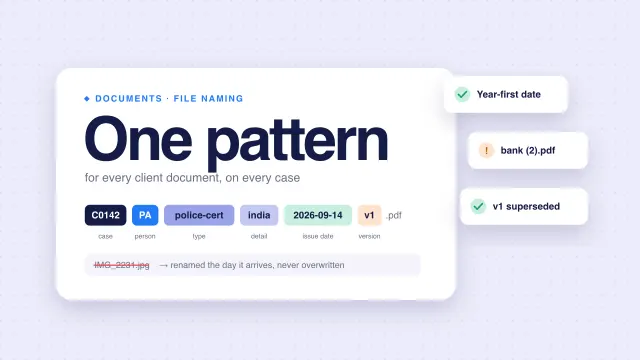
- how your naming and folder habits map to the new tool, see document naming conventions;
- what the client sees when invited;
- whether the output is something you would actually submit.
Fix your templates now. Changing them later means changing them on live files.
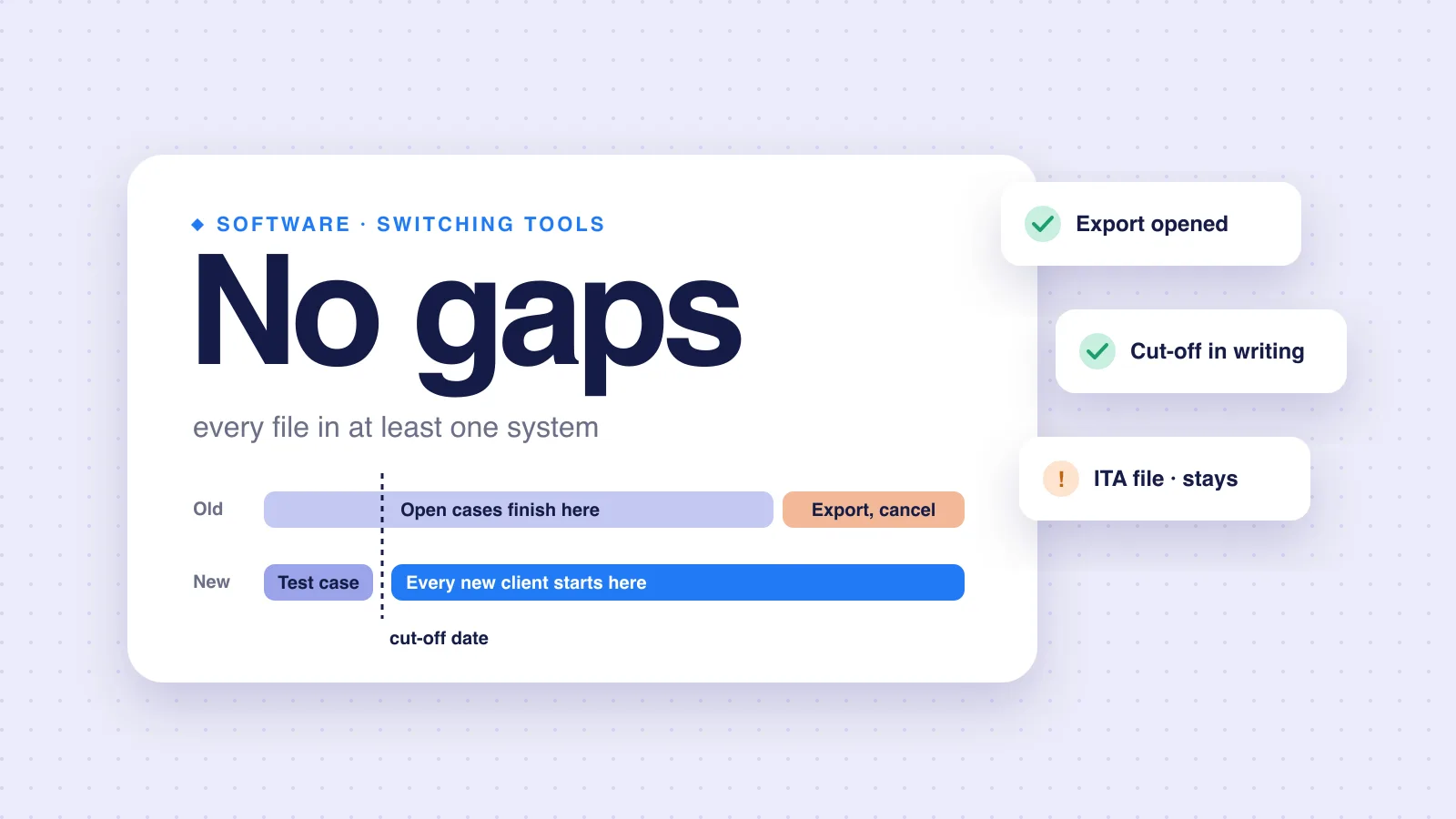
Step 4: New cases go in the new system
From a set date, every new client starts in the new system. Open cases stay where they are, unless they are early enough to move cleanly. A simple rule for open cases:
| Stage of the open case | Move it? |
|---|---|
| Agreement signed, few documents yet | Yes, move it now |
| Collecting documents, no invitation yet | Move if the client has not uploaded much |
| Invitation received, inside the 60-day window | No. Finish where it is |
| Submitted, waiting on IRCC | No. Finish where it is |
The 60-day row matters. IRCC says an invitation to apply is valid for 60 days only. A file in that window is the wrong file to experiment with.
Step 5: Tell clients and staff
Clients
If the way they upload or hear from you changes, tell them before the first request arrives in a new format. One short written note: what changes, when, and that nothing about their application changes. Our routine for client status updates fits this note.
Staff
Section 38(2) makes you responsible for the work of anyone who assists you. One short session on the new system, plus a written checklist, beats everyone learning by accident.
Check your service agreement too. Section 24(3)(q) requires it to describe how you maintain the confidentiality of the client's information and documents. If the new tool changes that, update the template for new clients. Section 24(5) says amendments to a signed agreement must be agreed in writing by both sides.
If the new vendor stores or processes data outside Canada, the Privacy Commissioner's cross-border guidelines say organizations should tell clients their information may be processed in another jurisdiction.
Step 6: Close the old system properly
Only when the last open case in the old system is closed:
- Take a final full export.
- Open it and spot-check it again.
- Store it in two places, under your control.
- Check the College's record-keeping by-laws, which section 37 of the Code points to, before deleting anything.
- Remove staff access, then cancel.
A timeline for a small practice
The calendar time depends on how long your open cases take to close. The active work is short.
- Week 1
Inventory and export
Steps 1 and 2: inventory, full export, spot-check.
- Week 2
One closed case
Step 3: one closed case end to end, templates fixed.
- Week 3
Cut-off
Step 4 starts: every new client goes in the new system.
- Same week
Tell people
Step 5: note to clients, short session for staff.
- When the last old case closes
Close the old system
Step 6: final export, check, store, cancel.
Put the cut-off date in writing for your team. Without it, new cases land in either system and the move never ends.
Common mistakes
| Mistake | Prevented by |
|---|---|
| Big-bang moves: every open case in one weekend | Step 4: new cases first |
| Trusting an export you never opened | Step 2: open it and check three cases |
| Cancelling before the last case closes | Step 6: close only at the end |
| Running both systems with no cut-off date, so new cases land in either one | A cut-off date in writing |
The cost of leaving is part of what you pay for software. Our guide to immigration software pricing models shows what to check before you sign the next contract.
How rcicaxis handles this
rcicaxis charges per new client case, with no monthly fee, so the side-by-side period in steps 4 to 6 costs you nothing extra for the cases still in your old system. Every practice starts with 3 free cases, which covers the closed test case in step 3. Clients are invited to a portal under your firm's name, and Compose builds one PDF per section. On a walkthrough we run one of your own client folders through it, so you can judge the fit before moving anything.
Questions
Should I move open cases to new immigration software?
Not all at once. A lower-risk approach is to start new cases in the new system and let most open cases finish where they are. Move an open case only when it is early enough that the move will not disrupt the client.
How long should I keep my old software?
Section 37 of the Code requires you to keep and preserve records in accordance with the College's by-laws. Check the by-law retention rules before you cancel, and keep a complete export you can open without the old vendor.
Do I need to tell clients I am changing software?
If the change affects how they send documents or receive updates, yes. Your service agreement describes how you keep their information confidential, under section 24(3)(q), so check it still matches what you do.
What should I ask my current vendor before I leave?
What you can export, in what format, whether it includes documents and messages, what it costs, and what happens to your data after you cancel. Get the answers in writing.
Sources
- Code of Professional Conduct for College of Immigration and Citizenship Consultants Licensees (SOR/2022-128)
- Office of the Privacy Commissioner: Guidelines for processing personal data across borders
- IRCC: Apply for permanent residence through Express Entry
The Code, the Privacy Commissioner's guidelines and IRCC facts checked against the sources above on November 10, 2026. This is practice guidance, not legal advice.